Watch the demo before purchase. Download the installers and setup instructions after checkout.
THE REAL PLUGIN
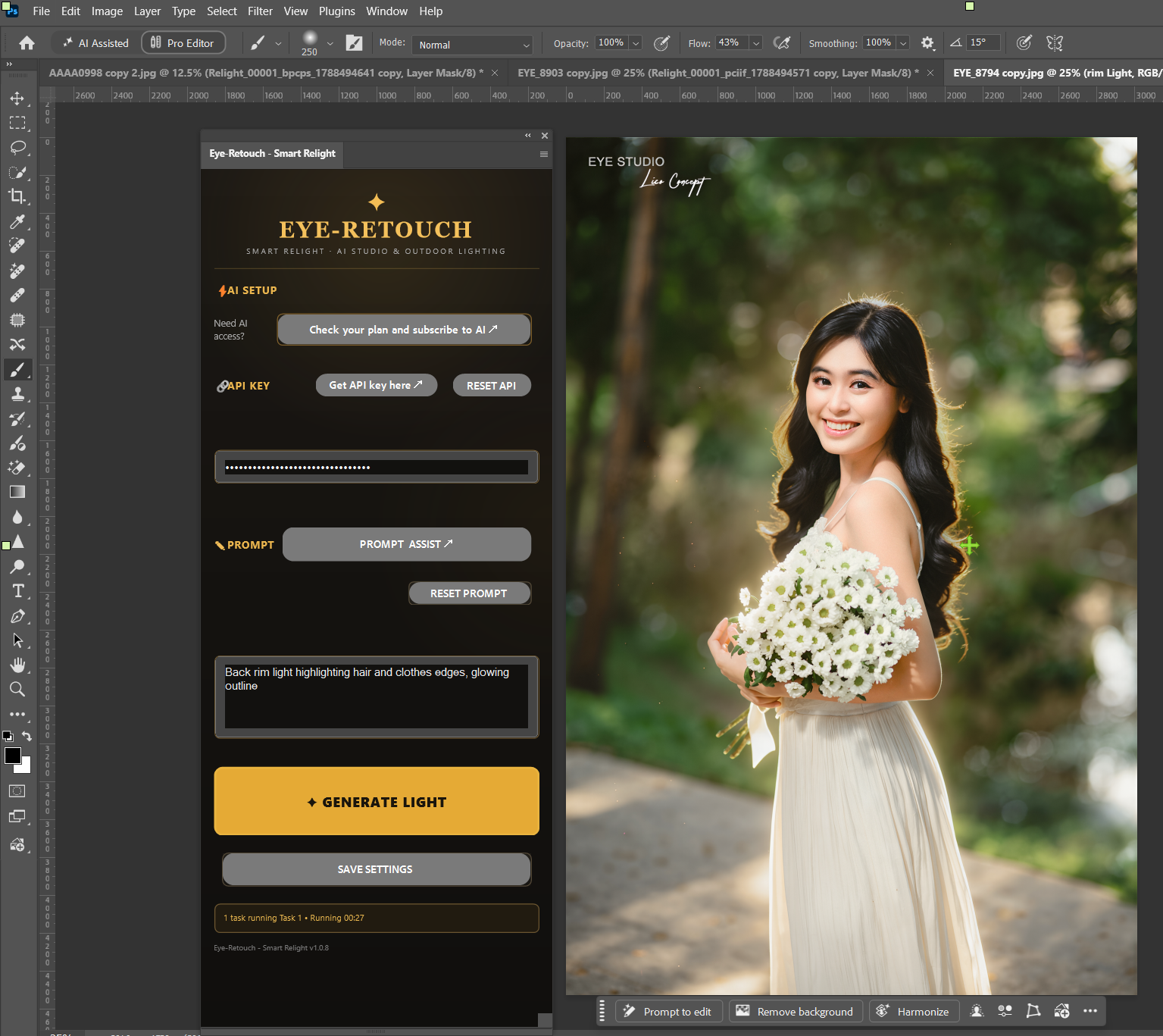
See Smart Relight inside Photoshop
This is the actual Smart Relight interface — not a mockup. The gold-and-dark interface is designed to feel native to a professional Photoshop workflow.
Ask about Smart Relight, installation, or your purchase. Tap below to open our WhatsApp contact and start a chat. WhatsApp Messenger must be installed.
Send a message anytime. We’ll reply when available.
One-time purchase. RunningHub account, API key, and AI usage charges are separate. Any applicable tax is shown at checkout.
What you receive after purchase
Windows Photoshop plugin ZIP
Windows Photoshop extension ZIP
Mac Photoshop plugin ZIP
Installation and how-to-use instructions
Downloads are delivered through Gumroad after successful payment.
START HERE • ENGLISH INSTALLATION GUIDE
Install Smart Relight, step by step
After payment, open your Gumroad receipt and click View content. Download the ZIP for your computer. Windows users can choose the plugin or the extension; you do not need to install both.
Which download should I choose?
Windows Photoshop 2023, 2024, 2025, and 2026: choose the appropriate Windows package below. Compatibility depends on your Photoshop installation and its available plugin components.
Cracked / modified Photoshop on Windows: choose the Windows Extension ZIP. It uses the Extensions (Legacy) menu and does not use the Creative Cloud Desktop installer. Modified or incomplete Photoshop installations may not work; compatibility is not guaranteed.
Adobe-licensed Photoshop on Windows: choose the Windows Plugin ZIP. It installs through Adobe’s plugin installer and opens from the Plugins menu.
Mac: choose the Mac Final ZIP and run Install Smart Relight.command from the extracted folder.
Smart Relight does not install or activate Photoshop. The Mac package requires Photoshop 24.0 or newer and Adobe’s plugin installer components.
Before installing: save your work and fully close Photoshop. Extract the ZIP first. Keep all files together in the extracted folder.
1. Windows — Photoshop plugin
Download the Windows plugin ZIP (1.0.24) from Gumroad.
Right-click the ZIP and choose Extract All. Open the extracted folder.
Save your work and close Photoshop.
Double-click Smart Relight Setup.exe, then select Install / Update.
Complete the Adobe installer prompts. When setup reports success, click Finish. Adobe Creative Cloud Desktop and its plugin installer components are required for this option.
Open Photoshop and choose Plugins → Eye-Retouch - Smart Relight.
2. Windows — Photoshop extension
Download the Windows Extension ZIP (1.1.2). Right-click it and choose Extract All.
Save your work and close Photoshop.
Double-click Smart Relight Extension Setup.exe.
Read the unsigned-extension notice. This package requires the installer’s Enable Adobe’s unsigned-CEP developer setting option. It also allows other unsigned CEP panels for your Windows user.
If you accept that setting, select the checkbox and click Install / Update extension. Click Finish when setup completes.
Open Photoshop and choose Window → Extensions (Legacy) → Eye-Retouch - Smart Relight CEP.
This installer does not use Creative Cloud Desktop. Photoshop must include the CEP and scripting components. Menu availability varies by Photoshop version; contact support if the panel is missing.
3. Mac — Photoshop plugin
Download the Mac Final ZIP (1.0.23). Double-click the ZIP to extract it.
Save your work and quit Photoshop completely with Photoshop → Quit Photoshop.
Open the extracted folder and double-click Install Smart Relight.command. Keep the included CCX file beside it.
Complete any Adobe prompts. The Terminal window will show the installation result.
When it says INSTALLATION SUCCESSFUL, press Return to close the installer.
Open Photoshop and choose Plugins → Eye-Retouch - Smart Relight. Check that the panel shows 1.0.23.
Requires Photoshop 24.0 or newer and Adobe’s plugin installer components. If the Adobe installer is missing, install or repair Creative Cloud Desktop. If macOS cannot open the installer, contact support with the exact message.
Connect your API key and make your first image
Sign in to RunningHub. You need your own account with sufficient AI credits or access. AI charges are separate from the $29 Smart Relight purchase.
Get your API key: open RunningHub API keys and copy your key. Reset it only if you need a new one; resetting invalidates the old key in other tools.
Save your key: paste it into Smart Relight’s API KEY field and click SAVE. Keep this key private.
Open a photo in Photoshop and select its document tab.
Describe the lighting in the prompt box, or use PROMPT ASSIST.
Click GENERATE LIGHT once. Your filename, Queued / Running status, and elapsed minutes and seconds appear in the task list. Processing time depends on the queue and image.
Keep Photoshop and the original photo open. The result is added as a new layer; Done appears in green. Adjust the layer opacity or add a mask, then save as PSD to keep the layers.
Cancel or try again
Click Cancel all tasks to clear this panel’s task list and allow a new generation. The panel also requests cancellation for known RunningHub task IDs. Server cancellation may take time or fail; clearing the list does not guarantee that server processing has stopped. A new generation can incur another AI charge.
Need help?
Tell support whether you use Windows or Mac, your Photoshop version, and the exact error message. You can send a screenshot, but hide your API key and personal payment information.
Telegram support: t.me/eyelico. Send a message and our team will reply when available.
OUR GLOBAL COMMUNITY
Visitors from around the world
See the countries visiting Smart Relight. Counting starts when this counter is added; earlier visits are not included.
Click the counter for more country statistics. Country estimates may be affected by VPNs, proxies, and blocked images. Setup and owner visits can be included.
Visitor counter provided by Flag Counter. Your browser connects to this provider to load the counter and estimate your country. Counter privacy policy.